CiviCRM Integration with QuickBooks On-line, Xero
This document describes the CiviCRM integration process with on-line accounts systems
Xero https://xero.com
QuickBooks On-line https://quickbooks.intuit.com/au
This document describes the integration with CiviCRM and Xero. The overall process for integrating with the other accounting systems (QuickBooks On-line) is the same with only minor variations.
How CiviCRM syncs Contributions and Contacts with the Accounting System
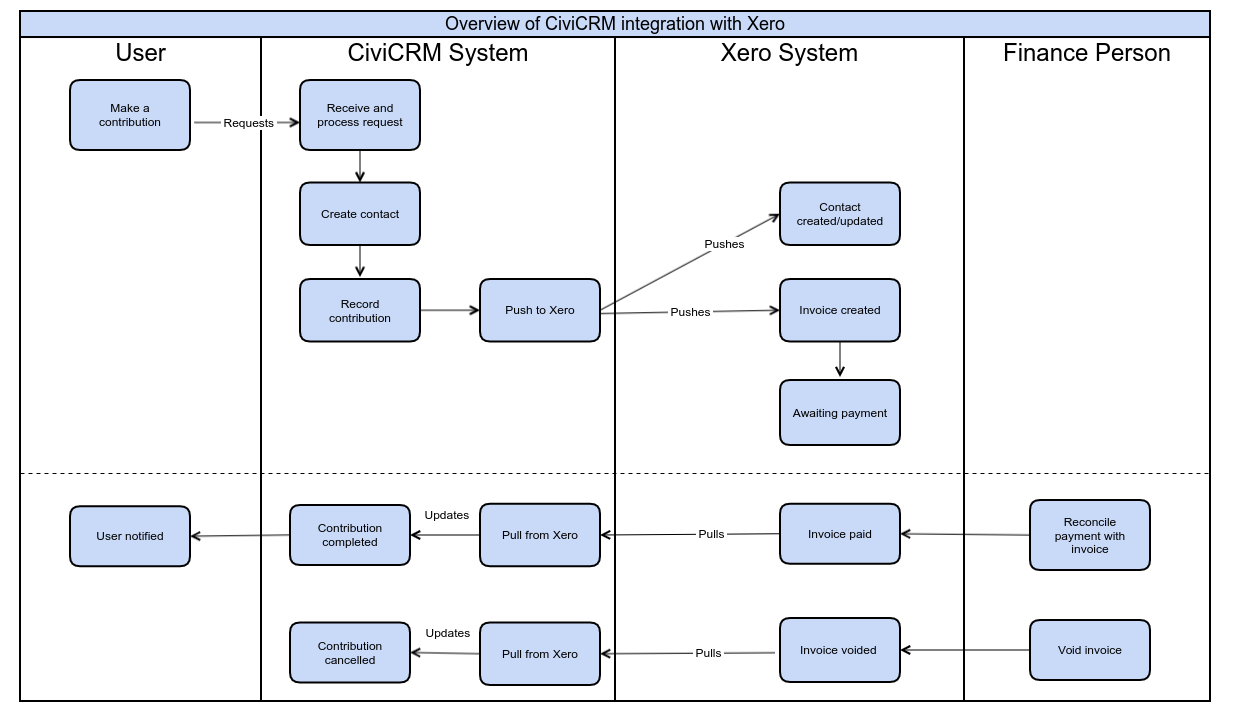
The following diagram is an overview of the process used to synchronise Contributions and Contacts with the accounts system
Information pushed to Xero
Each CiviCRM Contribution is pushed to Xero as an Invoice.
The CiviCRM Contact for the CiviCRM Contribution will be created in Xero as a Contact.
Information pulled from Xero
When the payment is reconciled for an Invoice in Xero, the CiviCRM Contribution is marked as completed.
If the Invoice is void in Xero, the CiviCRM Contribution will be Cancelled. Please note that we do not recommend voiding Xero Invoices. See Common issues section below.
When a pending CiviCRM Contribution is marked as completed
1. For a Contribution linked to Membership, the membership status will be changed to either new or current.
2. For a Contribution associated with Event registration, the participant status will be changed to registered.
Quick access to Xero from CiviCRM
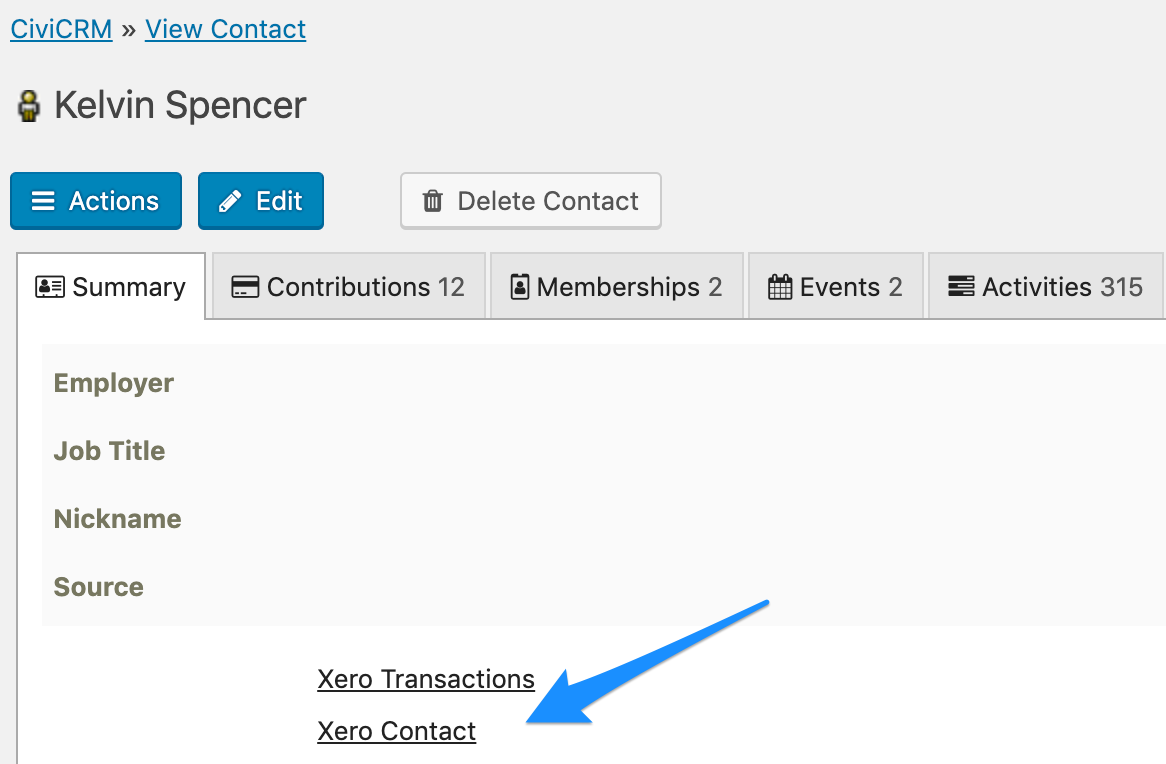
Contact Summary Page
Xero Contact on CiviCRM Contact Summary page links to the contact summary in Xero.
Xero Transactions on CiviCRM Contact Summary page links to a list of this contact's transaction history in Xero.
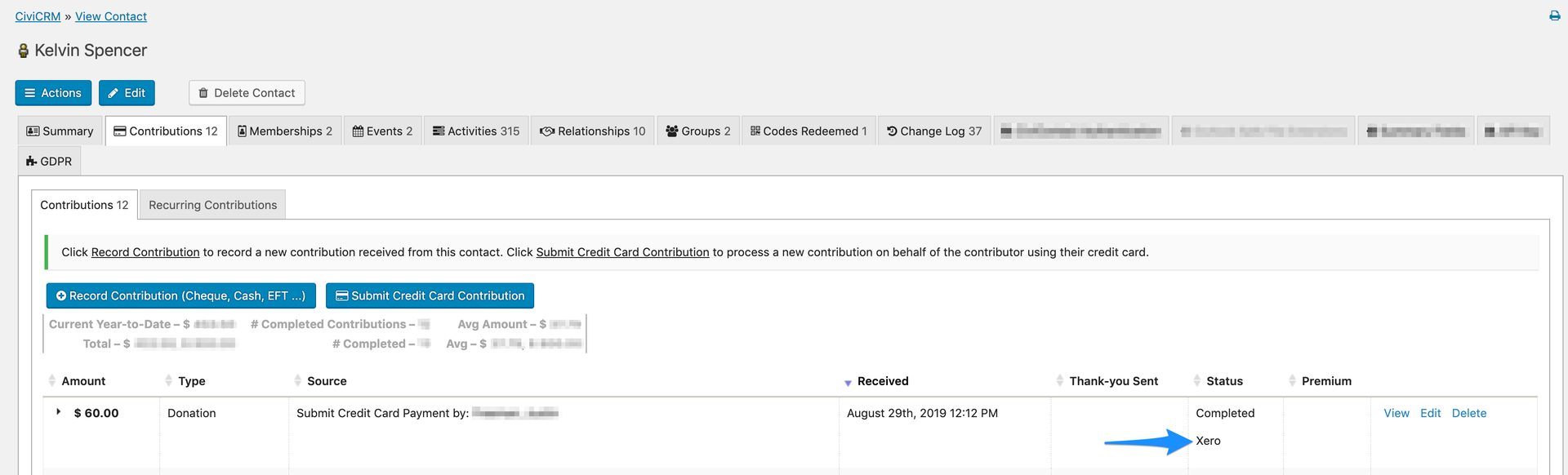
Links on Contribution Page
Links to associated invoice in Xero
Managing the integration
CiviXero Settings
In CiviCRM Dashboard > Administer > Xero > Xero Settings https://site.com.au/wp-admin/admin.php?page=CiviCRM&q=civicrm%2Fxero%2Fsettings
Xero default invoice status is Authorised which can be changed to Submitted or Draft.
Send receipts for contributions in CiviCRM is set as 'Do not send' by default which can be changed to 'No override' or 'Send'.
Common issues
1. Archived Xero Contacts cause CiviCRM push failures.
If the CiviCRM Contact is linked to a Xero Contact which has been archived in Xero, then updates to this CiviCRM Contact and any CiviCRM Contributions for this Contact will not be pushed to Xero. Errors will be logged and if there are a large number of CiviCRM Contacts affected, the sync process may abort, causing valid CiviCRM Contacts and CiviCRM Contributions to not be pushed to Xero.
Solution: Never archive contacts that are synced with CiviCRM. This causes issues and should be avoided.
Void Xero Invoices cause CiviCRM push failures.
If a Xero Invoice is void and has been pushed by CiviCRM, then the links between the CiviCRM Contribution and Xero Invoice will still exist. CiviCRM push will try to update the Xero Invoice and this push will fail.contact. Errors will be logged and if there are a large number of CiviCRM Contributions affected, the sync process may abort, causing valid CiviCRM Contacts and CiviCRM Contributions to not be pushed to Xero.
Solution: Never archive contacts that are synced with CiviCRM. This causes issues and should be avoided.
3. Duplicate CiviCRM Contacts or CiviCRM Contacts with the same name cannot be pushed to Xero.
Accounting systems require a unique name for each Contact. Xero specifically enforces a unique name for each contact. Therefore duplicate or contacts with the same name in CiviCRM will not be pushed to Xero without raising an error.
Solution: Regularly de-duplicate Contacts in CiviCRM. Ensure that CiviCRM Contacts pushed to Xero have a unique name for each contact.
4. The CiviCRM Contribution cannot be pushed to Xero if the CiviCRM Contribution Number conflicts with an existing Xero Invoice number.
Solution: To avoid this situation, configure Xero invoice number prefix in Administer > Xero > Xero Settings.
Ongoing maintenance
Regularly de-duplicate Contacts in CiviCRM. Ensure that CiviCRM Contacts pushed to Xero have a unique name for each contact.
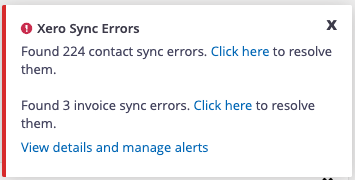
Check Contact Errors and Invoice Errors via Administer > Xero > Xero Settings > Xero Error Logs regularly. These errors will show up as pop-up windows on the CiviCRM Dashboard, see a screenshot attached: